![SO-logo_line_RGB.png]](https://knowledgebase.smartocto.com/hs-fs/hubfs/SO-logo_line_RGB.png?height=40&name=SO-logo_line_RGB.png)
Quick jump: Include multiple image and text(s) in the A/B-test
- In the lower right corner click on the switch icon, it will open Tentacles
- Click on the colored circle indicator in the upper left corner of the teaser you want to test
- Click on button start A/B Test to open the side menu:
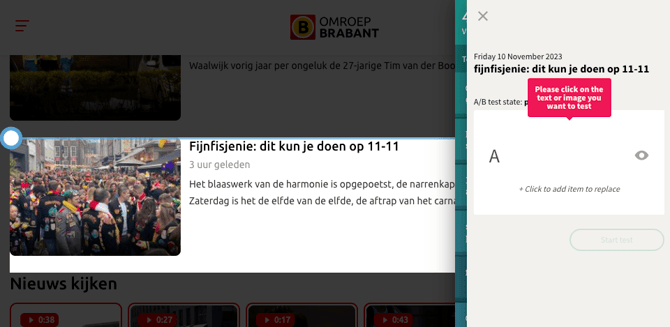
- Hover over the image you want to test.
- Click on the image to select it as option A. The image moves to option A:
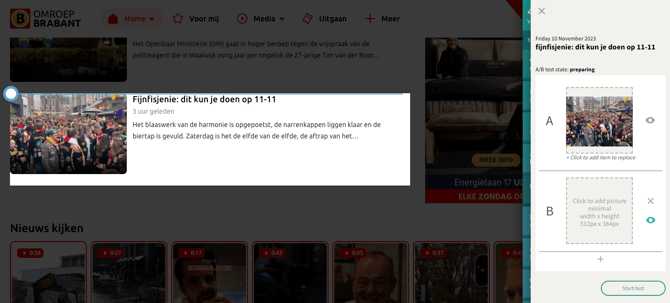
- Option B then shows an upload button:
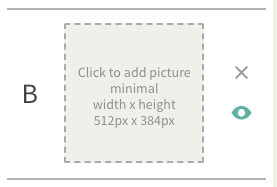
The button gives the minimal dimensions the alternative image must have. - Click on the upload button for option B to browse for the alternative image you want to test.
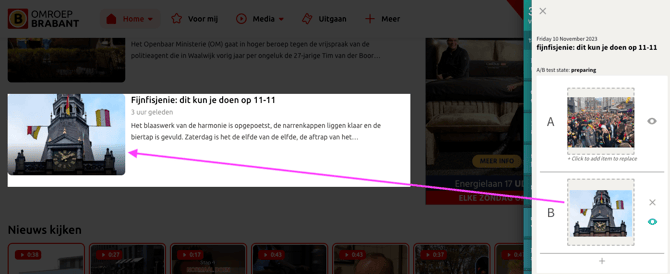
- The preview shows the uploaded image for option B:
- You can include the headline in the test (see instructions here).
- Start the test to serve the options to your audience.
- The test runs for a fixed time, before showing you a result.
Include image and text elements in the A/B-test
In case you want to include another piece of text to the image-test, for example, the headline:
- After selecting the original image and uploading the alternative image(s), you can click on + Click to add text to replace to select a piece of text.
- Select the second piece of content from the teaser.
- Type the alternative text for the selected piece of text.
- With a click on the eye icon next to an option, you can review the total original teaser or the total alternative option.
- Start the test to serve the options to your audience.
- The test runs for a fixed time, before showing you a result.
After the test is completed
After the test is completed, Tentacles will show you which image performed best. You can still see all tested images in the Tentacles Archive, but Tentacles does not automatically replace images once a test has ended. If an alternative image wins, make sure to update the image yourself in your CMS so it appears correctly across your channels.