![SO-logo_line_RGB.png]](https://knowledgebase.smartocto.com/hs-fs/hubfs/SO-logo_line_RGB.png?height=40&name=SO-logo_line_RGB.png)
SuperUser access
This article explains how to add, edit, and remove users in Realtime. Only users with SuperUser permissions have access to the Admin section and can manage other users.
Adding user
1. Go to the Admin section in the menu.

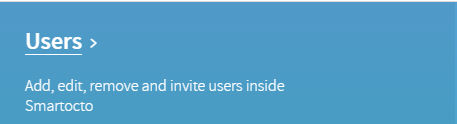
2. Click on Users

SuperUser role: A SuperUser can create new users and assign them to brands they have access to. They cannot delete accounts, but they can remove a user's brand access. They can also create Waves dashboards.
Note: If SuperUser is not selected, the user will have standard access only.
5. Select the brand(s) you want the user to have access to
6. Click on Save Changes
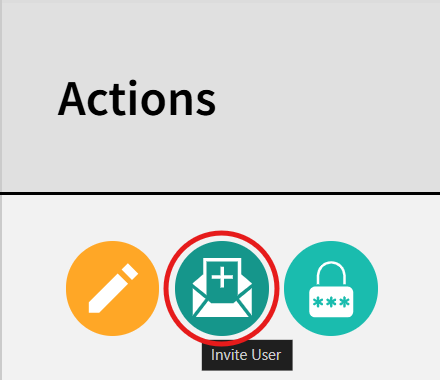
7. Now that the user is added, on the right side of the user list, click on the invite button to invite the user to complete registration to Realtime app. If the user lost the invitation mail, the re-invite button will be available to send the invitation again.
Editing
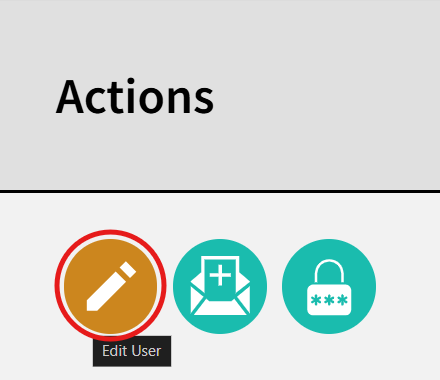
1. On the list right side of the user list click on the Edit button (pencil icon)
2. It will open the same setting like you are adding the user. You can:
- change the email
- change the first- and last-name
- provide additional access to other brands (to which you have access)
- upgrade to Super User or downgrade to normal user
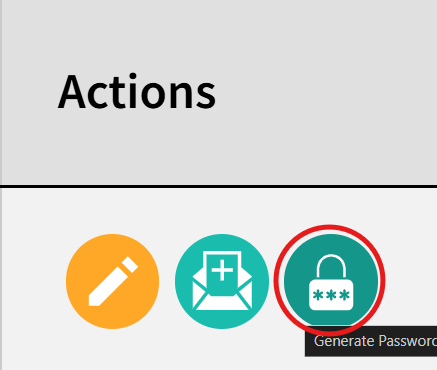
3. To change the password, on the user list right side click on Generate password it will send an email with the new password.
Removing users
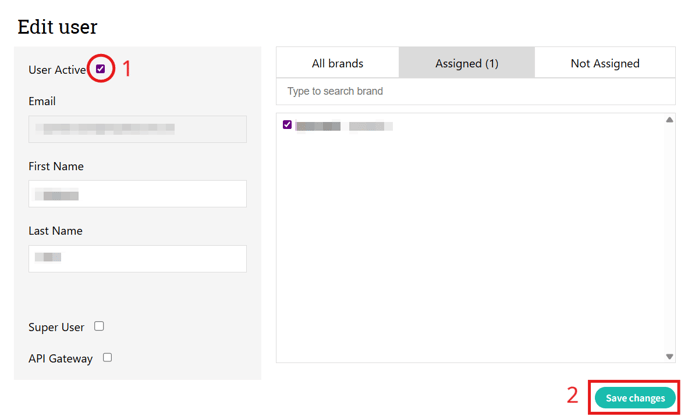
To deactivate a user and revoke their access, open their record via the Edit button (pencil icon) and complete these steps:
- Check or uncheck the User Active checkbox to enable or disable the user. A checked box means the user is active.
- Click Save changes to apply and revoke the user's access.
If you need to permanently delete a user from the application, contact your Customer Success Manager or email us at support@smartocto.com.